Admissions
Get help with applying to YC, admission steps, and getting started as a new student.
Call 928-717-7777
Getting around in your YC student portal.
Activate your account, sign in to myYC, locate important student information, and connect with help when something is not working.
Students who recently applied should complete these steps before attempting to register for classes or open other YC systems.
Look for your YC acceptance message. It includes your YC username, student identification number, and account activation instructions.
Use the account activation link in your message to establish your password. Store your password securely for future use.
Select the myYC button in the upper-right corner of a yc.edu page. Sign in with your YC account.
When prompted by Microsoft, enter your username in the format username@yc.edu.
Duo provides an additional identity-verification step that protects your YC account. Follow the on-screen instructions to approve the sign-in.
Some returning students may be asked to confirm their contact information and current degree or certificate before entering the portal.
Visit the YC Password Reset Utility and follow the instructions.
When an online reset is unsuccessful, contact the ITS Help Desk. You may be required to verify your identity before account assistance can be provided.
Your student ID is also called your Y number. After signing in to myYC, locate the My Account Info card. Your Y number appears near the top of that card.
To update your email, phone number, mailing address, emergency contact info or notification settings:
The myYC Experience portal provides access to email, registration, financial aid, course information, support services, and other student tools.
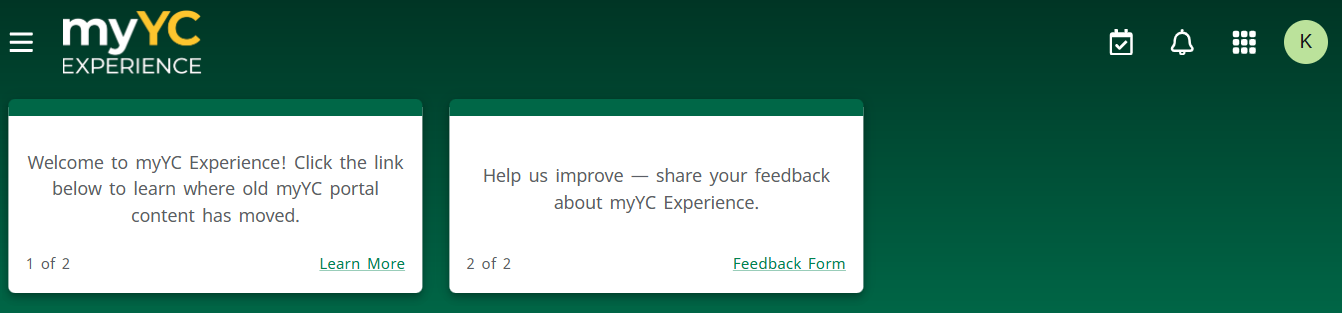
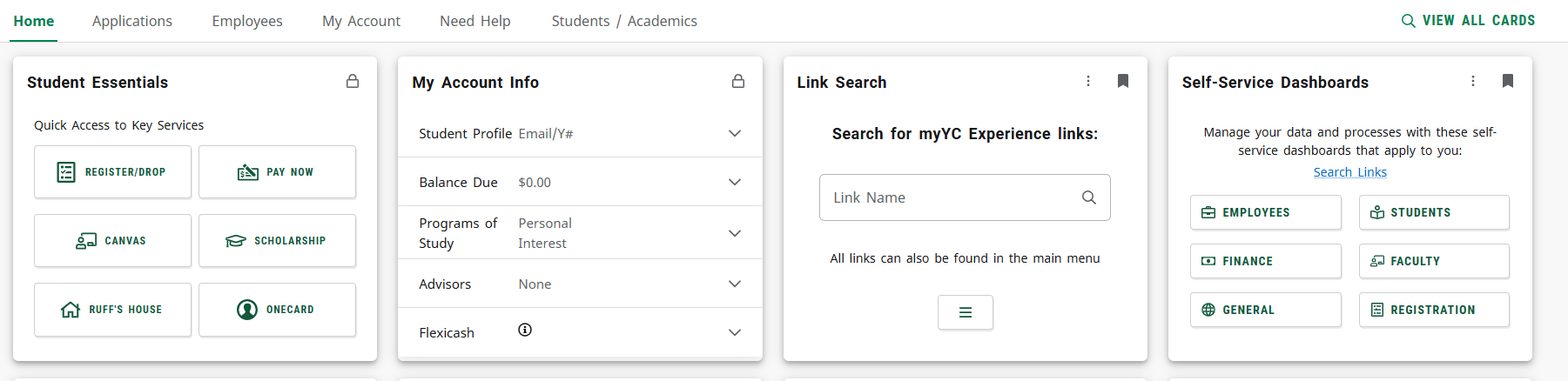
These services are also available from within the myYC Experience portal.
Contact the office that best matches the type of assistance you need.
Get help with applying to YC, admission steps, and getting started as a new student.
Call 928-717-7777
Get technical assistance with YC accounts, passwords, Duo, computers, mobile devices, and college systems.
Visit Information Technology Services
Call 928-776-2168
Find assistance with Canvas and the use of online course content and learning technologies.